
Column Dialog Box
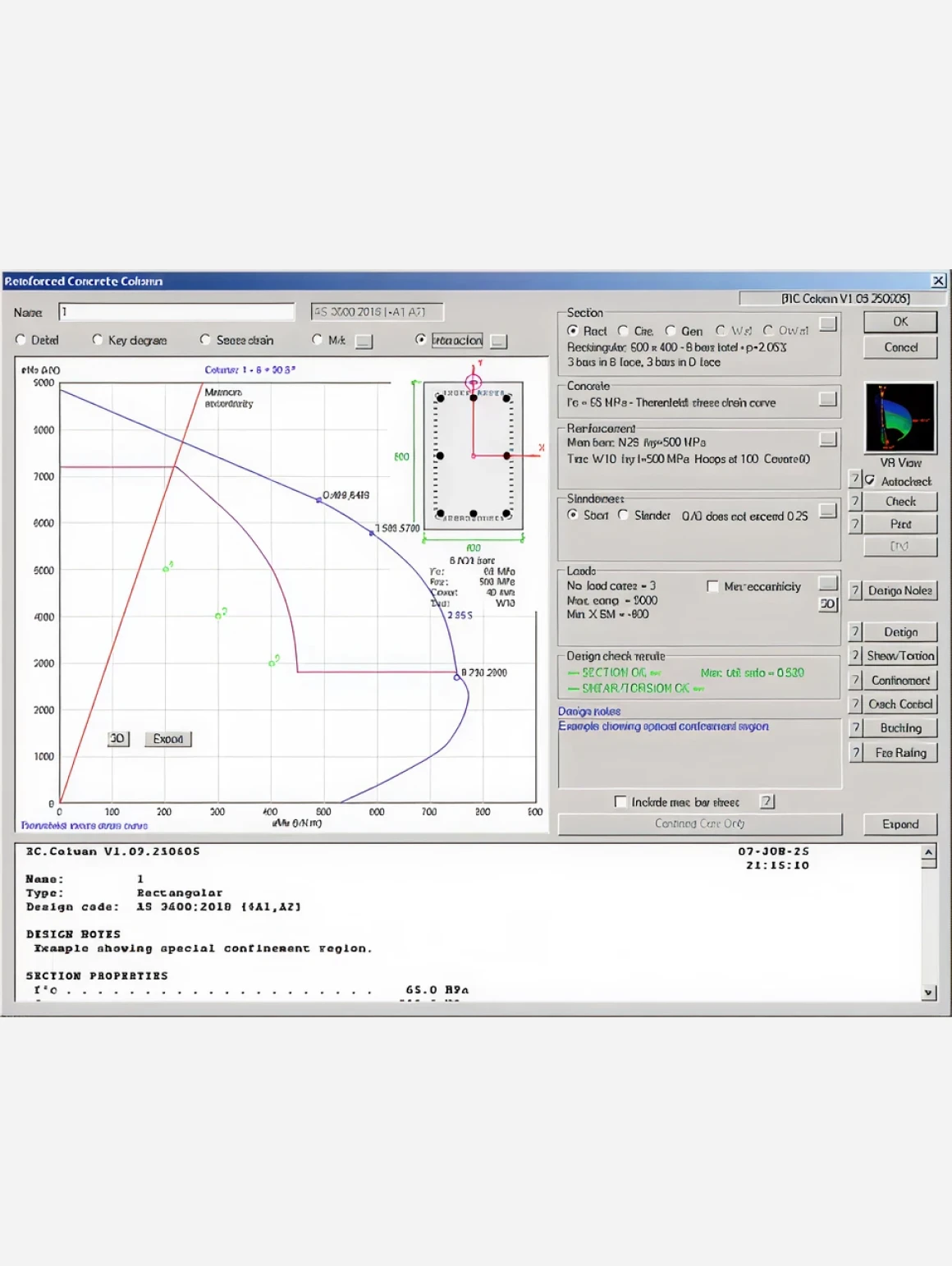
Double-clicking on a thumbnail or selecting a section type on the Columns menu displays the column dialog box, showing input data and results for the selected column.
The buttons located over the graphics window select the display.
Detail gives a dimensioned detail diagram of the column cross-section.
The key diagram shows cross-section parameters.
Stress-strain shows the current concrete stress-strain relationship.
M-k shows the computed moment-curvature relationship for the section. Click the adjacent "…" button to input a coexisting axial force.
Interaction displays an interaction diagram. Click the adjacent "…" button to set the type of interaction diagram. Click the 3D button on the interaction diagram to show a virtual reality (VR) view of the interaction curves and load points. Click the Export button to write a .CSV file containing the coordinates of points on the interaction curve.

Additional Checks
New dialog boxes accessible from the column dialog box allow you to perform the following checks. A report is available for each of these dialog boxes.